
If you bought an outright license for Outlook with no subscription attached, you may have noticed it switching to a new version seemingly on its own.
Microsoft’s rollout of New Outlook has been landing on Windows PCs regardless of what version you actually own. Whether you press the “Try the new Outlook” banner toggle or receive a sneaky popup that prompts you to do so, it means a separate version appears on your PC.
What is New Outlook?
New Outlook has difficulty with larger .pst archives and offers limited functionality beyond reading them. If you rely on PST in your workflow, you may find it inadequate.
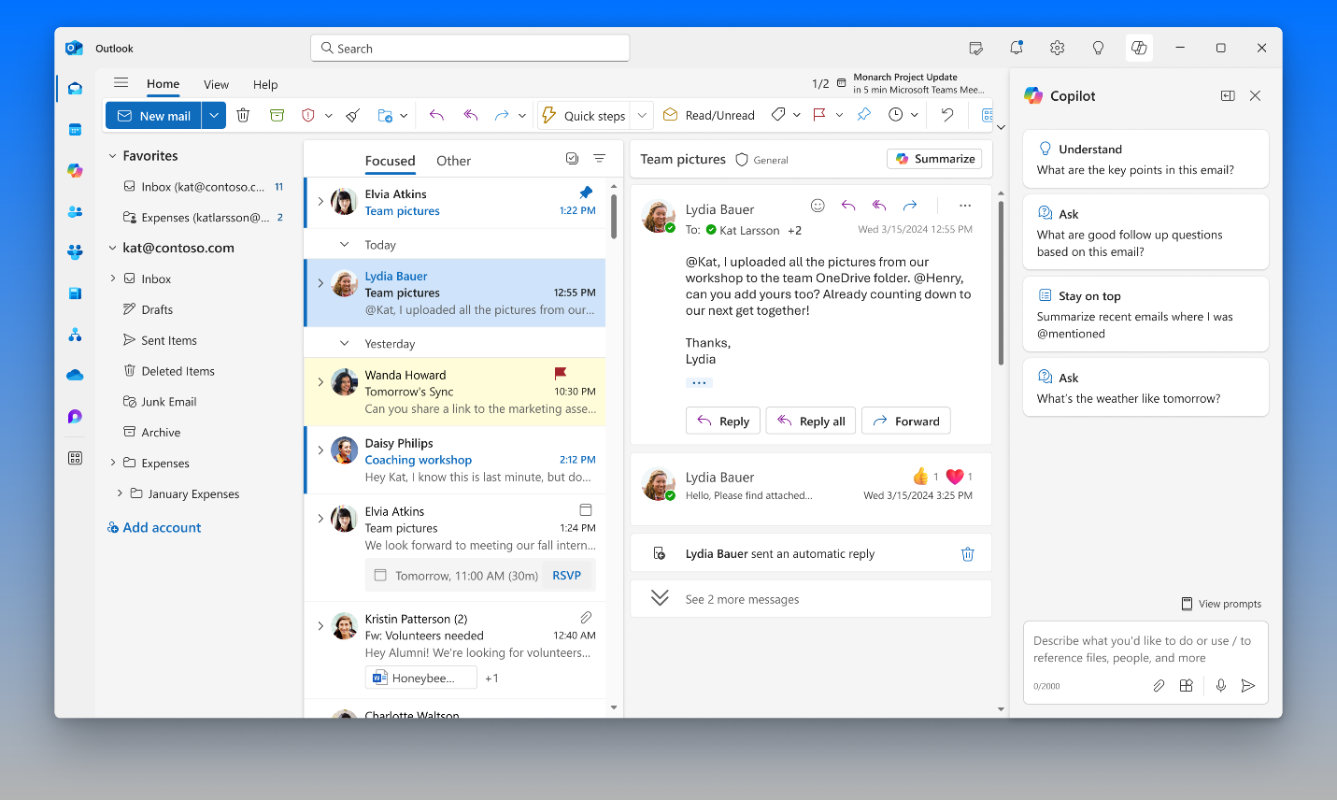
New Outlook is a separate app built on a different underlying architecture. It’s installed separately from your standalone Outlook app, but supplants it as the default email client on your system.
New Outlook repeatedly sets itself as the default app for email files, calendar links, and mailto links for some users – even after they’ve manually switched it back.
New Outlook looks different than Classic with a modernised interface. It is faster for search and Microsoft is continuing to build it out. If legacy extensions and .pst file handling aren’t important to you, New Outlook is a solid option.
The New Outlook toggle bug
Microsoft’s official word is that the in-app banner toggles were never meant to appear on one-time license or standalone installs; it was meant to be an opt-in feature tied to Microsoft 365.
However, there have been reports of the toggle appearing unprompted on perpetual license Outlook installs, speculated to be due to a bug in the shared codebase.
What to do about it
To check your license version, press File then Account. This will show the actual license you own. If you don’t see a File menu at all, you’re running New Outlook.
Office 2016 and 2019 versions reached end of support on 14th October 2025. Office 2021 ends on 13th October 2026, and Microsoft has confirmed there will be no extension of this and no extended security updates.
Office 2024 ends support on 9th October 2029.
Classic Outlook is expected to be supported until at least 2029, for both perpetual license installs and 365 subscription plans that include desktop apps.
If you don’t want to keep New Outlook, try removing it from your PC. You can right click it in the Start menu, then press Uninstall. Otherwise, search for it in your Installed Apps within settings and uninstall it from there.
It’s worth noting that it may come back after major Windows updates.





6 comments
Nat
this is interesting but confusing. I am running Microsoft Outlook on a Apple MacAir. I can’t see any indication of a “New outlook” or a “classic outlook.” I have an ongoing Office subscription I pay every year to run Office on my Mac. I am assuming there’s no New outlook” or a “classic outlook situation for me?
Scott Hunt
That’s right, if you’re paying a 365 subscription you will be on New Outlook.
Di
Dont change Nat, New Outlook has completely stuffed my IMac and after visits from Geeks, and abot 8 visits from online 2nd tier from Microsoft, I still have 5 folders of work missing in the computer somewhere and 6 functions “not available”.
Nat
Hi Di, I’m so sorry to hear that. I haven’t noticed any issues myself (not putting it out there to the universe) – it doesn’t announce any new outlook on my outlook.
The only thing I have noticed is when a tradesperson sends me an email from within their accounting packages like Xero – I never get it. And it never goes to junk mail either.
I tell them though so they know. It’s because the sender is a weird not normal email address.
But that’s all I’ve noticed.
I haven’t noticed any missing folders. I assume you mean missing folders in outlook containing emails?
Nat
thanks Scott. the only benefit to Classic Outlook I can read in your information is the use of (.pst).
Since pst is a file format used to store copies of messages, calendar events, and other items within Microsoft software – I’m not too concerned. If an email is that important, I copy the contents to a word file at the time and save it onto my local drive. As for a calendar event from 5 years ago – I won’t be losing sleep. 🙂
Scott Hunt
Agreed! Some users find they prefer to stick to the interface they’re used to, though.